


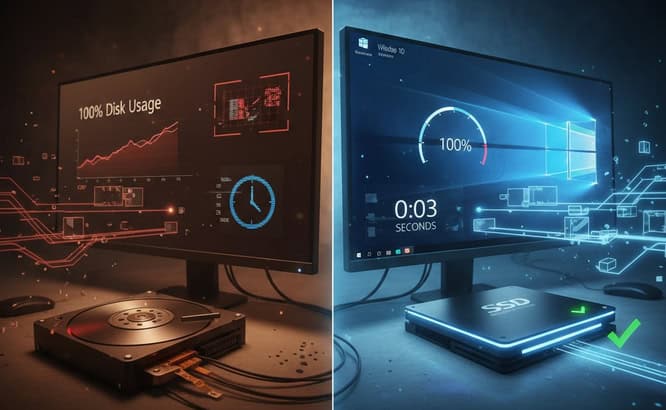
Is your PC struggling with slow boot times or the dreaded “100% Disk Usage” error? In 2026, mechanical Hard Disk Drives (HDDs) are the primary bottleneck for modern operating systems. Upgrading to a Solid State Drive (SSD) is the most effective hardware intervention to boost performance.
The biggest hurdle for users is the fear of losing files or having to perform a clean Windows installation. This guide provides a definitive, risk-free method to clone Windows 10 from HDD to SSD while keeping your settings, apps, and data perfectly intact.
Why Migrate Windows 10 to an SSD?
Switching your boot drive to an SSD offers immediate, tangible benefits:
-
Sub-15 Second Boot Times: Move from minutes to seconds during startup.
-
Enhanced System Responsiveness: Eliminate UI lag during background Windows Updates.
-
Silence and Reliability: Unlike HDDs, SSDs have no moving parts, making them silent and more durable.
-
Optimized Workflows: Resource-heavy apps like Adobe Creative Cloud or high-end games launch up to 5x faster.
Pre-Migration Checklist: What You’ll Need
Before starting the transfer, ensure you have these four essentials ready:
-
A Compatible SSD: Ensure the target SSD has enough capacity to house the used data on your current C: drive.
-
Connection Hardware: A SATA-to-USB adapter (for laptops) or a spare SATA/M.2 cable (for desktops).
-
Data Safety: Always perform a quick backup of critical documents to OneDrive or an external drive before structural disk changes.
-
Reliable Cloning Software: We recommend EaseUS Disk Copy for its specialized “Sector-by-Sector” technology.
Why Use EaseUS Disk Copy for SSD Migration?
While manual migration is possible, it often leads to MBR/GPT partition errors or “Inaccessible Boot Device” blue screens. EaseUS Disk Copy is the industry standard for 2026 because:
-
4K Alignment: Automatically optimizes SSD clusters to ensure peak read/write speeds.
-
Smart Resizing: If your SSD is smaller than your HDD, it intelligently clones only the used space.
-
WinPE Bootable Media: Allows you to clone the OS outside of the Windows environment for 100% data integrity.
Step-by-Step: How to Clone Windows 10 to SSD
Step 1: Initialize the New Drive
Connect your SSD to your computer. Open Disk Management, right-click the new drive, and select Initialize Disk. Ensure the partition style (GPT or MBR) matches your current source drive.
Step 2: Configure EaseUS Disk Copy
Launch the software and select “Disk Mode.” This ensures that hidden recovery partitions and the EFI system partition—essential for booting—are included in the transfer.
Step 3: Select Source and Destination
-
Source: Select your current HDD.
-
Target: Select your new SSD. Note: Any existing data on the SSD will be overwritten.
Step 4: Enable SSD Optimization
This is the most critical SEO-standard step. In the layout preview, check the box: “Optimize for SSD (4K Alignment).” This prevents performance degradation and extends the lifespan of your NAND flash memory.
Step 5: Execute the Clone
Click “Proceed.” Depending on your data volume and connection speed (USB 3.0 vs. SATA III), the process typically completes in 30–60 minutes.
Crucial Final Step: Change the Boot Priority
Cloning the data is only half the battle. You must tell your motherboard to use the new drive.
-
Restart your PC and enter the BIOS/UEFI (Tap F2, F12, or DEL).
-
Locate the Boot Priority or Boot Order menu.
-
Move the New SSD to the top of the list.
-
Save and Exit (F10).
Pro Tip: Once Windows 10 boots successfully from the SSD, you can format the old HDD to use as a secondary “D:” drive for mass storage of photos and videos.
Frequently Asked Questions (FAQ)
Will I need a new Windows 10 License Key?
No. Since you are keeping the same motherboard and CPU, Windows 10 will recognize the hardware signature and remain activated automatically.
Can I move Windows 10 to a smaller SSD?
Yes. As long as the actual data on your HDD (e.g., 200GB) is smaller than the total capacity of the SSD (e.g., 250GB), EaseUS Disk Copy will successfully resize the partitions during the clone.
Is cloning better than a clean install?
Cloning is significantly faster for users who want to keep their installed programs, browser passwords, and desktop layouts. A clean install is only recommended if your current Windows installation is corrupted or infected with malware.
Bonus: Cloning vs. Clean Installation – Which is Right for You?
When upgrading to an SSD in 2026, you face a critical choice: do you clone your existing setup or perform a clean installation? While both methods result in Windows 10 running on faster hardware, the “best” path depends on the current health of your operating system.
The Case for Cloning (Recommended for Most Users)
Cloning is the process of creating a bit-for-bit replica of your current drive.
-
Pros: It is the ultimate time-saver. You won’t have to reinstall complex software (like Microsoft Office or Adobe Suite), re-configure system settings, or hunt for forgotten Wi-Fi passwords. Everything is exactly where you left it.
-
Cons: If your current Windows 10 installation is plagued by “registry bloat,” malware, or corrupted system files, cloning will move those problems to your new SSD.
The Case for Clean Installation
A clean install involves formatting the SSD and installing a fresh copy of Windows 10 from a USB drive.
-
Pros: It provides a “factory fresh” experience. It is the best way to eliminate deep-seated software bugs, hidden bloatware, and fragmented files that have accumulated over years of use.
-
Cons: It is incredibly labor-intensive. You must manually back up all files, reinstall every application, and re-activate your software licenses.
The Verdict
Choose Cloning if your PC is currently stable but just feels “slow” due to mechanical HDD speeds. Using a tool like EaseUS Disk Copy makes this a 30-minute task.
Choose a Clean Install only if your current system is frequently crashing (Blue Screen of Death) or if you want to start with a completely empty slate.